➕ Section 05: Submit Flow and Memory Updates
📝 Summary
In this section, you will connect your form to real app behavior. You will add helper functions that update data in memory, then write a submit event listener that reads user input, validates it, and adds a new book when the input is valid.
By the end of this section, your app will do a full add-book flow: read form values, block bad input, create a book object, update the page, update memory, show feedback, clear fields, and reset button state.
✅ Checklist
- [ ] Open
app.jsin your project root. - [ ] Locate your Section 04 DOM helper block.
- [ ] Type the new Section 05 code block by hand below the DOM helper functions and above the existing
inputlistener. - [ ] Add
addBookToMemory(book)to store new books in thebooksarray. - [ ] Add
removeBookFromMemory(isbn)to remove a matching book from memory. - [ ] Add the form
submitevent listener on#book-form. - [ ] Add required-field validation and duplicate-ISBN validation.
- [ ] Add the success flow that updates both page and memory.
🎓 Core Concepts (HTML and CSS)
This section does not add new HTML or CSS lines, but it is where your existing HTML structure starts doing real work. Your form IDs (#title, #author, #isbn, and #book-form) become the input sources for JavaScript. Your table body (#book-list) and count element (#book-count) become output targets JavaScript updates after each successful submit.
You are also using CSS classes through JavaScript in a more meaningful way now. When you call showAlert(..., 'success') or showAlert(..., 'danger'), your code applies Bootstrap alert styles to communicate status clearly. This helps users understand what happened without reading developer-style error messages.
The biggest new idea is syncing two places at the same time: what users see on the page and what your app remembers in memory. If you only update the page but not the array, your app logic will break later. If you only update memory but not the page, users will be confused. Good apps keep both in sync.
💻 Code to Write
HTML (index.html)
No HTML changes in this section. Keep your index.html from Section 02 exactly as it is.
CSS (This Section)
No CSS changes in this section. Continue using the Bootstrap and Font Awesome setup already in your HTML.
JavaScript (app.js)
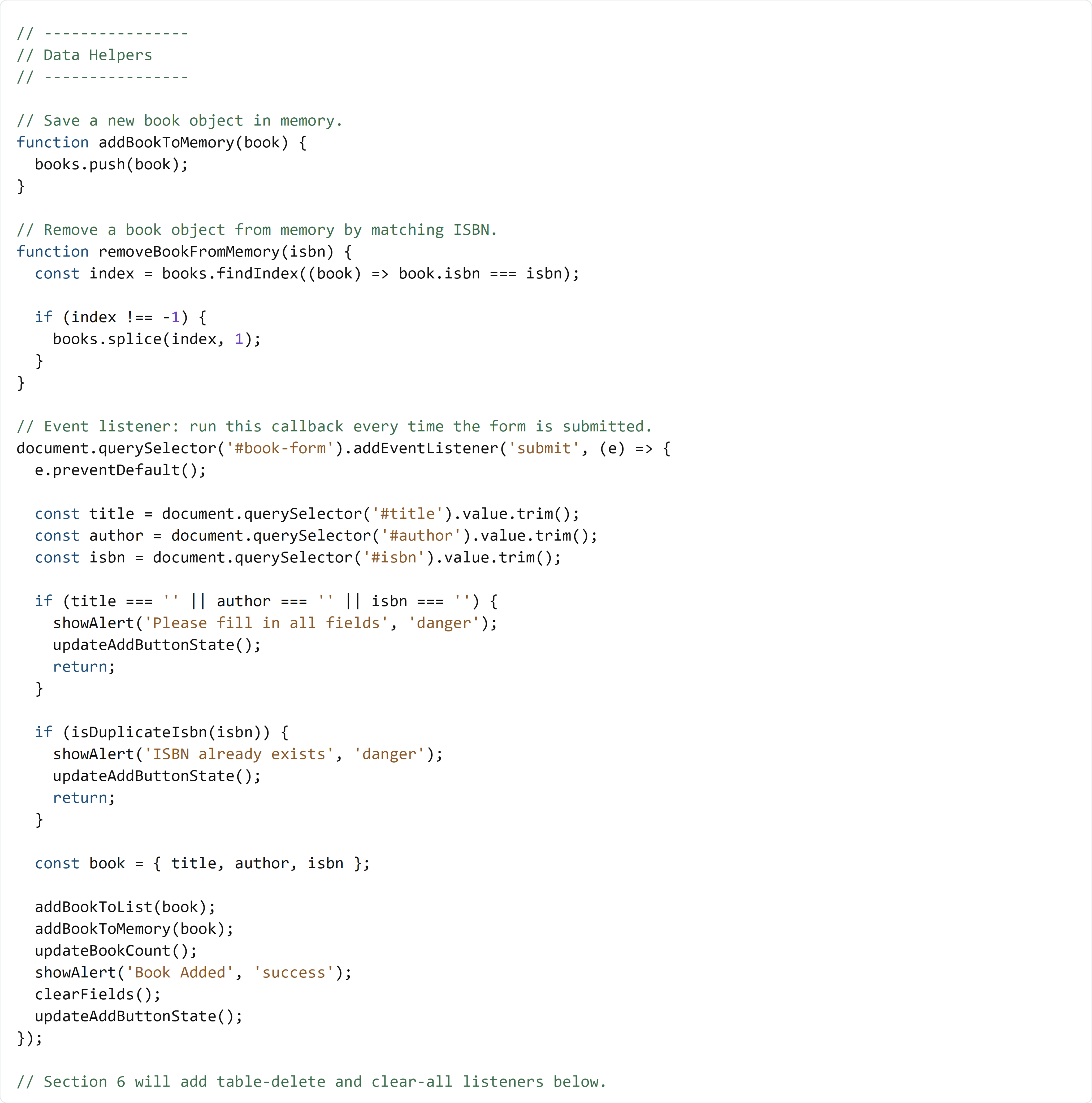
Open app.js, then type the code block below by hand below your DOM helper functions (Section 04) and above your existing input event listener.
In the next section, you will add table delete and clear-all listeners below this submit block.
🧠 Detailed Key Concepts
Start with the two data helper functions. addBookToMemory(book) uses books.push(book) to place a new object at the end of the array. An array is a list, and push means "add to the list." In removeBookFromMemory(isbn), findIndex(...) searches for the position (index) of a matching book. If no match is found, JavaScript returns -1. That is why the if (index !== -1) check matters before calling splice.
splice(index, 1) removes one item from the array at the given position. This is important because it keeps your data list accurate after delete actions in later sections. Even though full delete UI logic is next section, you are preparing the memory side now so your app stays consistent.
The submit listener starts with addEventListener('submit', ...). An event listener means "run this code when this event happens." A submit event normally refreshes the page, so e.preventDefault() stops that default behavior. This lets your app process the form with JavaScript without losing data from a page reload.
Then you read and clean inputs with .value.trim(). trim() removes extra spaces from the beginning and end of text. After that, your code performs validation. Validation means checking whether input follows your rules. Rule 1: all fields must have text. Rule 2: ISBN must be unique. If a rule fails, showAlert(...) displays a message, updateAddButtonState() keeps button state correct, and return exits early so no bad book is added.
When input is valid, const book = { title, author, isbn }; creates an object. An object is a grouped set of related values. Then your success flow runs in order: add row to page (addBookToList), add book to memory (addBookToMemory), refresh the count (updateBookCount), show success feedback (showAlert), clear form fields (clearFields), and re-check the Add button (updateAddButtonState). This order teaches a core app pattern: update view and data together so what users see always matches what your app stores.