🧩 Section 04: DOM Update Helpers
📝 Summary
In this section, you will build helper functions that update what the user sees on the page. Instead of putting all display logic inside event listeners, you will create reusable functions for adding a row, showing alerts, clearing form fields, removing one row, and clearing all rows.
By the end of this section, your app.js file will be organized in a way that makes later sections easier. You are setting up visual update tools now, and in the next sections you will connect these tools to submit, delete, and clear-all actions.
✅ Checklist
- [ ] Open
app.jsin your project root. - [ ] Find the
updateAddButtonState()function. - [ ] Add the full "DOM Update Helpers" block directly below
updateAddButtonState()and above the event listeners. - [ ] Add
addBookToList(book)to create and append a new table row. - [ ] Add
showAlert(message, className)to display temporary success/error messages. - [ ] Add
clearFields()to reset all form inputs. - [ ] Add
removeBookFromList(target)to remove one clicked row and return its ISBN. - [ ] Add
clearBookListOnPage()to remove all table rows from<tbody id="book-list">.
🎓 Core Concepts (HTML and CSS)
This section does not add new HTML or CSS lines, but it teaches you how JavaScript can use the HTML and CSS you already built. In earlier sections, you added IDs and class names in your markup. Now you will select those elements and update them while the page is running. That process happens through the DOM, which is the browser's live, editable version of your page.
You will also use Bootstrap class names in a dynamic way. For example, alert classes like alert-success and alert-danger are not hard-coded in your HTML file this time. JavaScript builds those class names and inserts an alert element into the page when needed. This is a core front-end idea: CSS classes are not only for static HTML; JavaScript can apply classes at runtime to change what users see.
Another key concept is separation of concerns, which means giving each function one clear job. One function adds rows, one shows alerts, one clears fields, and so on. When each function has a focused purpose, your code is easier to read, easier to test, and easier to fix when something goes wrong.
💻 Code to Write
HTML (index.html)
No HTML changes in this section. Keep your index.html from Section 02 exactly as it is.
CSS (This Section)
No CSS changes in this section. Continue using the Bootstrap and Font Awesome setup already in your HTML.
JavaScript (app.js)
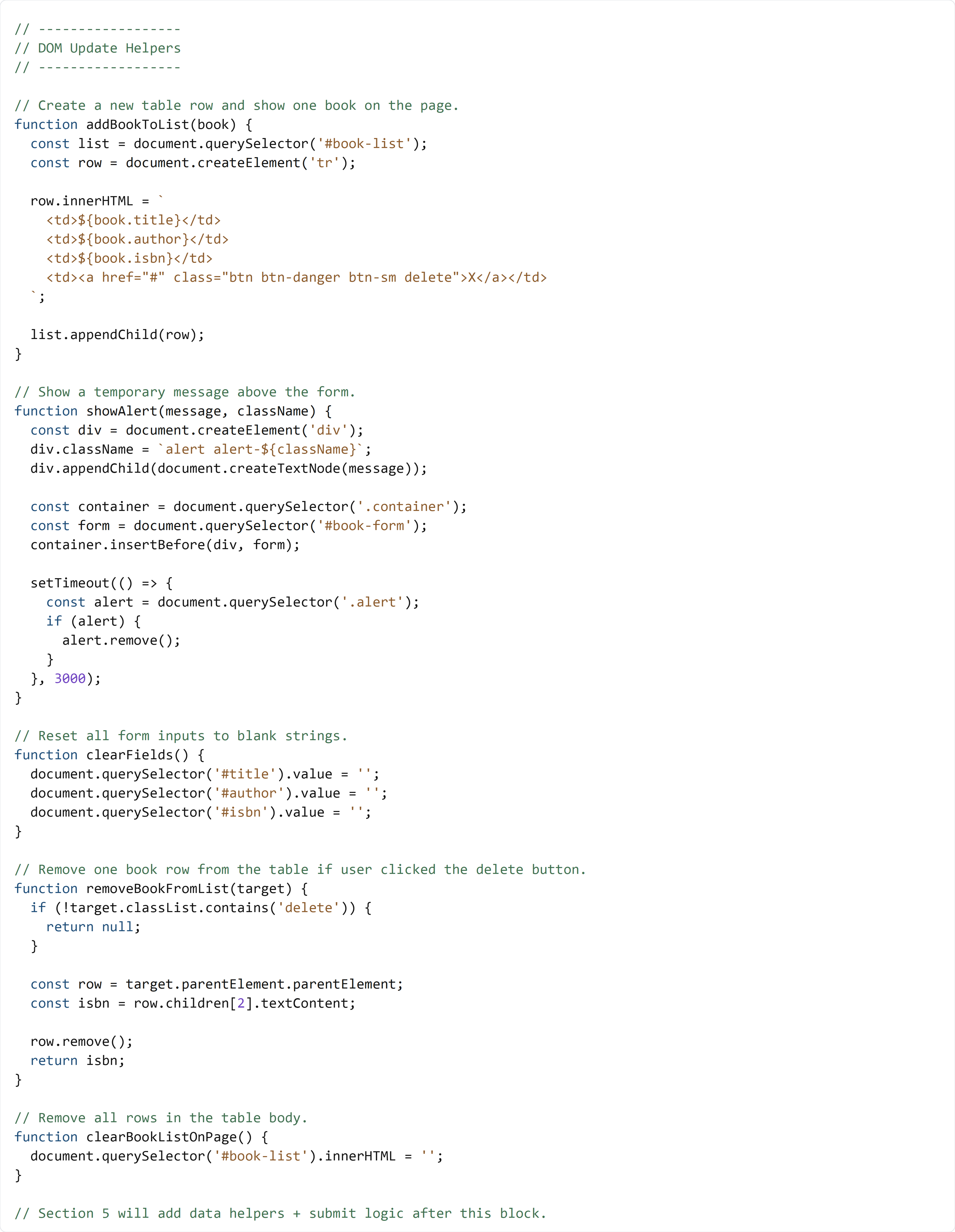
Open app.js and type the block below by hand directly under updateAddButtonState() and above your event listeners (input listener and the placeholder comments for later sections).
In the next section, you will add data helper functions and the form submit listener after this DOM helper block.
🧠 Detailed Key Concepts
Start with addBookToList(book). The parameter book is the data object for one book. A parameter is an input value a function receives. Inside the function, document.querySelector('#book-list') selects the table body where rows should appear, and document.createElement('tr') creates a new row element in memory. The row.innerHTML = ... template fills that row with cells for title, author, ISBN, and a delete button. Finally, list.appendChild(row) puts the row on the page.
In showAlert(message, className), you create a <div> element and assign classes like alert alert-success or alert alert-danger. This is why the function has className as input: you can choose the alert style when you call it. container.insertBefore(div, form) places the alert above the form so the message is easy to see. Then setTimeout(..., 3000) removes the alert after 3 seconds. A timeout means "wait this long, then run code."
clearFields() is short but important. It sets each input value to an empty string (''), which clears the form visually and in the DOM state. After a successful submit, this keeps the interface clean and ready for the next entry.
removeBookFromList(target) is your first helper that supports event delegation. Event delegation means you listen on a parent element and check what was actually clicked. The line target.classList.contains('delete') makes sure the click came from a delete button. If not, the function returns null (a value meaning "nothing useful to return"). If it is a delete click, the function moves from the clicked link to its row, grabs the ISBN from the third cell, removes the row, and returns the ISBN so later code can also remove the matching data from memory.
The last helper, clearBookListOnPage(), clears all displayed rows by setting #book-list to an empty string with innerHTML = ''. This is a fast way to wipe the table view. Later, when you add clear-all behavior, this function will keep your event code simple because the display-clearing logic already lives in one reusable place.