🧠 Section 03: JavaScript State and Form Readiness
📝 Summary
In this section, you will write your first real JavaScript logic for the project. You will create the in-memory data structure, connect key DOM elements, and build helper functions that control form readiness and the live book count display.
By the end of this section, the Add Book button will respond to real-time input rules: it stays disabled until all fields are filled, and it remains disabled when the ISBN already exists in the current app data.
✅ Checklist
- [ ] Open
app.jsin the project root. - [ ] Type the Section 03 JavaScript block by hand so it replaces the Section 02 placeholder comments.
- [ ] Add the
booksarray and button selector. - [ ] Add
updateBookCount(),isDuplicateIsbn(isbn), andupdateAddButtonState(). - [ ] Add the
inputevent listener on#book-form. - [ ] Call
updateBookCount()andupdateAddButtonState()at the bottom for initial UI state. - [ ] Save the file and test that the Add button enables/disables correctly while typing.
🎓 Core Concepts (HTML and CSS)
This section does not add new HTML or CSS lines, but it shows why your HTML structure from Section 02 matters. You already created IDs like #title, #author, and #add-book-btn. Now JavaScript can use those IDs as direct connection points. This is called selecting elements from the DOM. The DOM (Document Object Model) is the browser's live version of your page that JavaScript can read and change.
You will also learn about state. State means the current data your app is tracking right now. In this section, the books array becomes your app's state while the page is open. Instead of guessing what the page should show, your code checks state and updates the interface based on rules. For example, if required fields are empty, the Add Book button stays disabled.
Another core idea is validation in real time. Validation means checking whether user input follows your rules. Here, the rules are simple: all fields must have values and ISBN cannot be a duplicate. Because your HTML targets are clean and predictable, your JavaScript can stay focused on these rules instead of struggling to find elements.
💻 Code to Write
HTML (index.html)
No HTML changes in this section. Keep the index.html from Section 02 exactly as it is.
CSS (This Section)
No CSS changes in this section.
JavaScript (app.js)
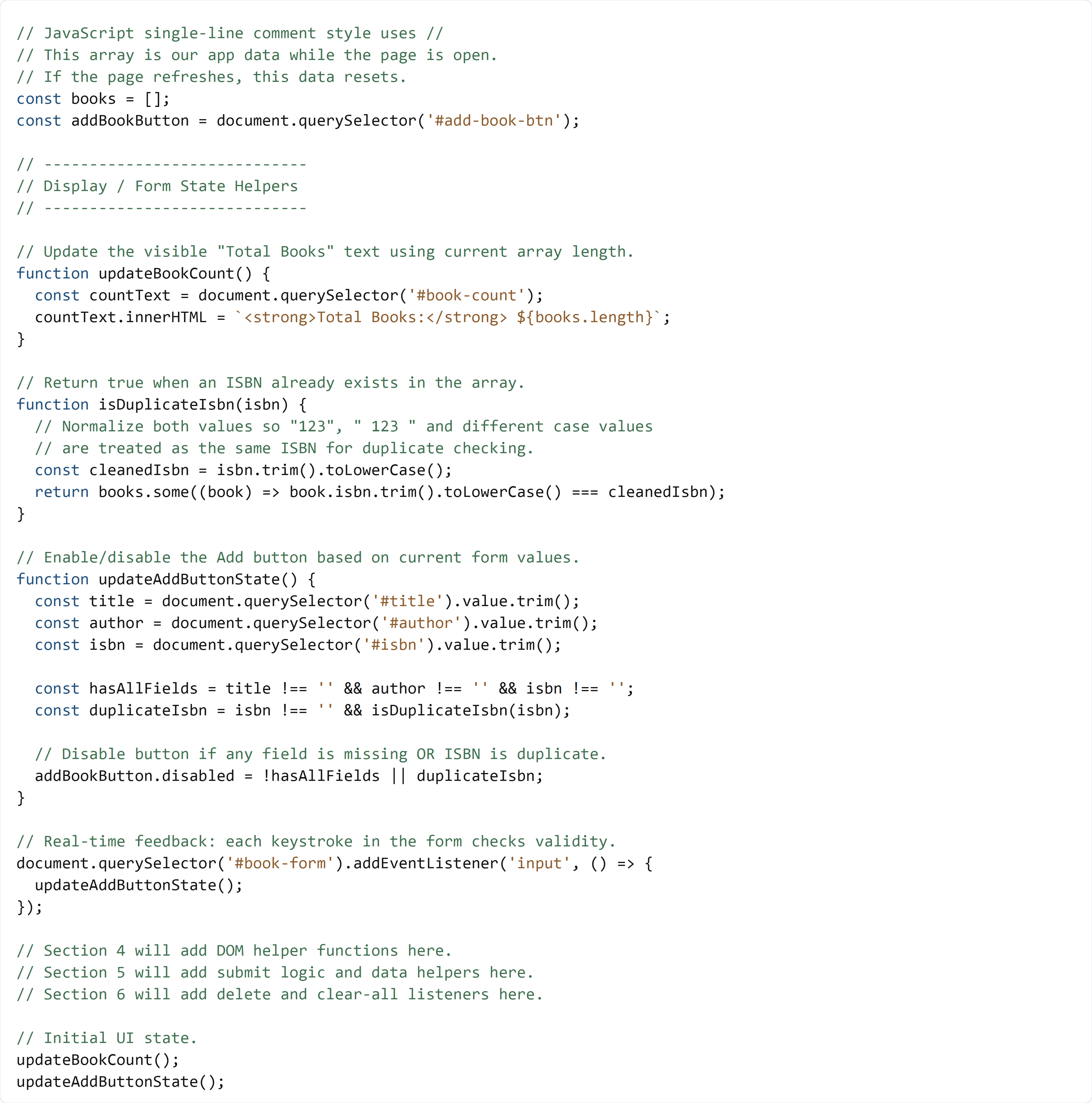
Open app.js in the project root and type the full Section 03 code below by hand so it replaces the Section 02 placeholder comments. This code should currently be the full content of app.js.
In the next section, you will add DOM update helper functions below updateAddButtonState() and above the event listeners.
🧠 Detailed Key Concepts
The first line, const books = [];, creates an empty array. An array is a list that can hold multiple values. Here, each value will later be one book object. The word const means the variable name (books) will always point to the same array. The next line, document.querySelector('#add-book-btn'), finds one page element by ID and saves it in addBookButton. A selector is the text you use to find elements, and # means "find by id."
In updateBookCount(), you read books.length and write the result into #book-count. length means "how many items are in the array." The line with backticks ( `...${books.length}` ) is a template literal, which is just a string that can include live values inside ${...}. This lets the count update automatically as your data changes.
isDuplicateIsbn(isbn) checks whether an ISBN already exists. trim() removes extra spaces at the start or end, and toLowerCase() makes text lowercase so comparisons are more consistent. Then books.some(...) asks: "Does at least one book match this ISBN?" The method returns true or false. A true/false value is called a boolean, and booleans are the backbone of validation rules.
In updateAddButtonState(), you read all three inputs, build two booleans (hasAllFields and duplicateIsbn), then combine them in one rule for addBookButton.disabled. This is a practical example of conditional logic: the button should stay disabled if any required condition is not met. The input event listener runs this check every time you type. An event listener means "run this function when something happens," like typing in a form.
At the end of the file, updateBookCount(); and updateAddButtonState(); run once when the page first loads. This is initialization, which means setting correct starting values before the user does anything. Good initialization prevents confusing UI states and makes the app feel predictable from the first second.